


Google Play Games
3.9201.57K Reviews
App Specs
- Version
- Varies with Device
- Updated On
- License
- Free
- Downloads
- 5,000,000,000+
- Developer
- Google LLC
- Categories
- Entertainment
- Platform
- Android, iOS
Screenshots
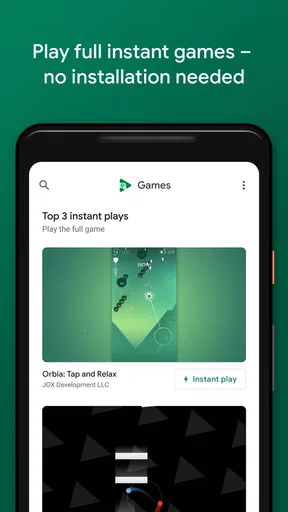
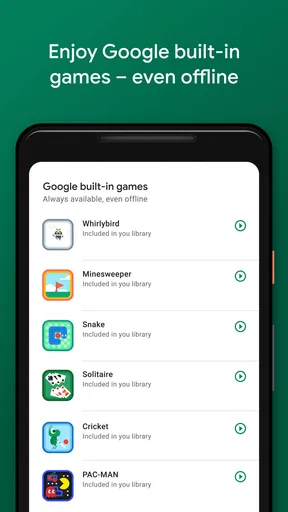
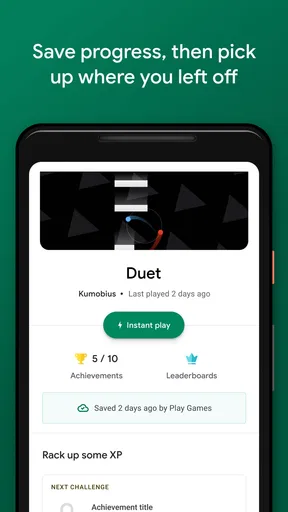
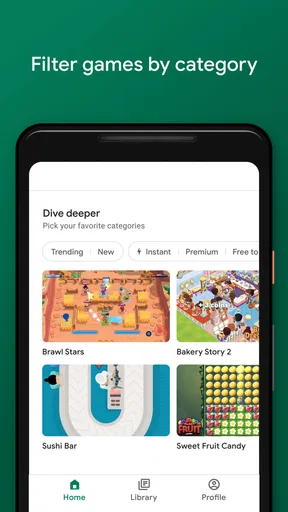
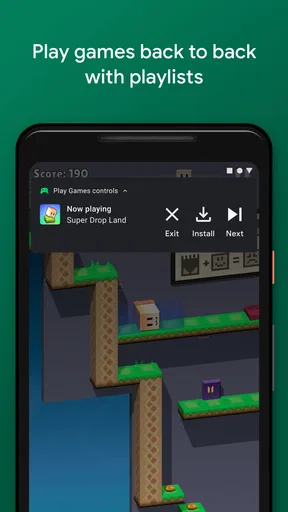
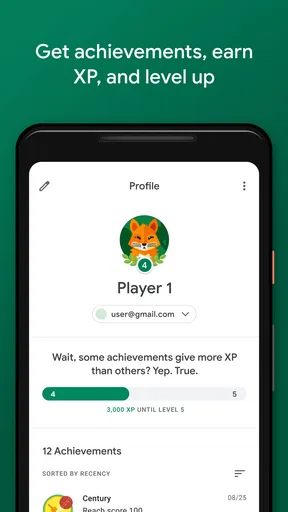
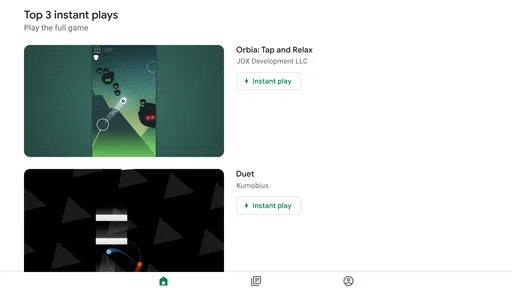
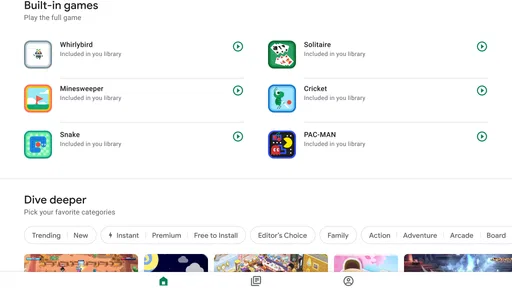
 Analysis by AppCompare
I tend to think of Google Play Games less as a game in its own right and more as a shared doorway into Android gaming. That distinction matters in a household: it can help people find games, keep track of play, and pick up supported progress, but it doesn’t replace the individual games or decide who should use a device. I’d consider it most useful when different people take turns on a phone or tablet and want a familiar place to return to their own gaming activity.
When a shared screen changes the routine
Picture a quiet stretch after dinner: one person wants to continue a puzzle, while someone else is waiting to try a different game. Google Play Games can make the gaming side of that routine easier to organize, especially when each player uses their own Google account and the game supports the relevant progress features. The practical benefit is not that a shared device becomes magically personal; it is that a player has a better chance of seeing their own activity rather than treating every session as a fresh start.
I would still make the handoff deliberate. Before passing a phone or tablet to another person, check which account is active and whether the game itself has its own profile or sign-in. The app’s role is not the same as a device-level user switch, and a game may handle saved data differently from another game. That small pause can prevent the familiar confusion of someone opening a title and finding another player’s progress on screen.
Guides and Analysis on Google Play Games
Account boundaries are worth setting up first
For a family or a group sharing hardware, the most useful habit is to decide whose Google account will be used before installing or opening games. If one account is used by everyone, activity and progress can become difficult to separate, and a child may encounter an adult’s game history or settings. Separate accounts are a clearer starting point, but they do not automatically create every boundary a household might want. I would not treat Google Play Games as a substitute for the device’s own account, purchase, or screen-time arrangements.
There is another subtle point: progress syncing is helpful only when the game and account combination supports it. I would check a game’s own sign-in and save behavior before relying on a switch between devices. For a game that stores progress differently, the Play Games profile may not be a complete backup. If preserving a particular save is important, it is safer to confirm the game’s own account status before changing devices or accounts.
Coordination without turning play into a chore
Achievements and friends can add a light social layer, but they can also turn casual play into a stream of comparisons. In a household, I’d use those features as conversation starters rather than as a scoreboard everyone has to chase. A younger player might enjoy showing a new milestone; someone else may prefer to play privately. Both are reasonable, and there is no need to make every game session a shared activity just because the app offers social elements.
One useful routine is to agree on simple device handoff rules: finish a level when practical, leave the game in a recognizable state, and tell the next person whether the game is signed into a personal profile. That is ordinary household coordination, not a special feature of the app, but it makes the app’s account and progress tools easier to use responsibly. It also reduces the chance of a sibling accidentally continuing a save that someone else cares about.
Worth Reading Before You Choose

Basketball Stars: Multiplayer Is Fast, but Can It Recover When Matches Go Wrong?

WEBTOON Turns Phone Updates Into a Better Reading Routine

Link to Windows Runs on Shared Habits, Not Social Feeds

How Alibaba.com Dominates the B2B Marketplace

Metro's Quiet Rise: Redefining Mobile Communication

Harnessing Ecosystem Power with Phone Tracker by Number
Age context and realistic expectations
Google Play Games is rated Teen, so I would take that age context seriously when deciding whether it belongs on a younger user’s device. The rating is a useful prompt to look at the games themselves, too: the app is a gateway to many different titles, and their content can vary. A parent should review the particular games a child wants to play rather than assuming that one app rating tells the whole story about every game available through it.
Google LLC is the developer, and the app is free. Its long presence on Android has made it a familiar name for many players: it was released in July 2013, has passed five billion installs, and holds a four-point-zero average from around thirteen million ratings, alongside roughly two hundred thousand written reviews. Those figures speak to broad adoption, not to a guarantee that every game will sync cleanly or suit every household. I’d judge it by the titles and accounts your family actually uses.
Getting Started with Google Play Games
First things first, setting up Google Play Games is a breeze. All you need is a Google account and a PC that meets the system requirements. Just download the app, sign in, and you’re good to go. The interface is clean and intuitive, making navigation as smooth as butter. I was up and playing in no time, which is always a good sign.
Why Play on a Bigger Screen?
Playing games on your phone is fun, but let's face it—sometimes you just want a bigger screen and more control. That’s where Google Play Games on PC shines. Imagine playing your favorite mobile titles with a mouse and keyboard or a gamepad. It’s a whole new ball game, pun intended. The visuals are crisper, and you can really appreciate the details that are sometimes lost on a smaller device.
Syncing and Saving Made Easy
One of the standout features is the seamless syncing with your Google account. All your progress, achievements, and even in-game purchases are right there waiting for you. No more starting from scratch—thank goodness! It makes transitioning from mobile to PC and vice versa a piece of cake.
A Wealth of Games
Now, let's talk about the games. Whether you're into action-packed titles, strategic puzzles, or casual time-killers, there's something for everyone. The selection is vast, and new games are added regularly. I found myself hopping between genres, trying out new games I might not have considered on mobile.
Performance and Graphics
Performance-wise, I was impressed. The games run smoothly with minimal lag, and the graphics are top-notch. It's like my favorite mobile games got a glow-up. Just make sure your PC can handle the demands, and you’re set for some serious gaming sessions.
Social and Community Features
What’s a game without friends, right? Google Play Games includes social features that let you connect with friends, join multiplayer games, and even compare achievements. It adds a social layer that makes gaming even more engaging. I found myself competing with friends for high scores, and it definitely added to the fun.
Some Things to Note
While the app is pretty fantastic, there are a couple of things to keep in mind. Not every mobile game is available, which might be a bummer if you have a specific title in mind. Also, some games might require tweaking settings for optimal performance. But hey, no app is perfect, right?
Overall, Google Play Games on PC is a fantastic way to enjoy mobile gaming on a bigger screen. With a user-friendly interface, seamless syncing, and a wide array of games, it’s definitely worth a try. So, if you’re looking to take your mobile gaming to the next level, give it a whirl. You won’t be disappointed!
Where it fits among gaming alternatives
Compared with opening each game separately, Google Play Games is useful as a common gaming hub: achievements, a player identity, and supported saved progress are easier to think about in one place. Compared with a console launcher, though, it is tied to Android games and their individual support. It is not a universal library that makes every mobile title available on every screen, so I’d look up the particular game you care about before planning around it.
It also serves a different purpose from a dedicated emulator or a game’s own launcher. If your goal is simply to play a supported mobile title on a PC, Google’s option may be the more straightforward route. If you need a specific control setup, broad compatibility, or a particular title that is not offered there, another method may suit you better. The trade-off is convenience versus choice: the simpler route is only useful when the game you want is included and works well for your setup.
Small checks that save frustration
When moving between devices, I’d treat the first launch as a test rather than assuming everything is already in place. Open the game while connected to the account you intend to use, check that the expected profile appears, and give any save or sync prompt a moment to complete. This is especially worthwhile before uninstalling a game or handing a device to someone else. A visible achievement can confirm account activity, but it is not the same thing as verifying that a game’s latest save has transferred.
For PC play, I’d also try a short session before settling in for a long one. A title designed around touch may feel awkward with a keyboard or mouse, even if it launches successfully. Check whether the controls feel comfortable and whether text and menus are easy to read at your usual distance. That simple trial helps answer a practical question the app alone cannot answer: does this particular game feel better on the larger screen, or is the phone still the easier way to play?
Who will get the most from it
I’d recommend Google Play Games to Android players who move between supported games, enjoy collecting achievements, or want a more organized way to find their gaming activity. It can also suit a household that shares a device, provided people take care with account selection and understand that each game may manage profiles and saves in its own way. The app is less compelling for someone who only plays one title and already uses that game’s own tools without trouble.
I would also skip it as a solution to a specific compatibility problem until checking whether the game is available in the experience you plan to use. It cannot make an unavailable title appear, and a bigger display does not automatically make every touch-focused game more comfortable. If you want a guaranteed way to separate several people’s device use, use the device’s own account arrangements as well; a gaming profile alone is not a complete household management system.
A sensible household verdict
For shared use, I see the app as a helpful organizer rather than a family-control tool. Its strongest household value comes from keeping gaming identities and supported progress more coherent, while the main responsibility remains with the people sharing the device: choose the right account, check a game’s own save behavior, and review age suitability title by title. Those steps make the experience less confusing without expecting the app to enforce rules it was not designed to provide.
My overall view is positive, with one important qualification: Google Play Games works best when the games you actually want are supported and you are comfortable using a Google account as part of your gaming routine. It is free to try, widely used, and can make casual play feel more connected across a household or between phone and PC. If your priorities are strict separation, exhaustive game availability, or a specific control scheme, compare alternatives first. For everyone else, it is a practical place to start and a useful companion to the games themselves.
Pros
- Seamless integration with Google account.
- Wide variety of games to choose from.
- Cloud saves for progress continuity.
- Achievements and leaderboards available.
- User-friendly and intuitive interface.
Cons
- Requires constant internet connection.
- High battery consumption on devices.
- Limited offline game options.
- Some games have intrusive ads.
- In-app purchases can be costly.
FAQs for Google Play Games
What is Google Play Games, and how does it enhance my gaming experience?
Google Play Games is a service provided by Google that enhances your gaming experience on Android devices. It offers features such as cloud saves, achievements, leaderboards, and multiplayer capabilities. This app not only keeps track of your progress across devices but also allows you to compete with friends, making gaming more social and engaging.
Do I need a Google account to use Google Play Games?
Yes, a Google account is required to use Google Play Games. The account allows you to sync your game progress across devices and access features like cloud saves and leaderboards. Your Google account will also help you keep your achievements and gaming history intact if you switch devices or reinstall games.
How does Google Play Games handle in-app purchases and privacy concerns?
Google Play Games does not handle in-app purchases directly; these are managed by the individual games through the Google Play Store. Regarding privacy, Google Play Games collects data to improve user experience, but you can manage your privacy settings within the app. This includes controlling who can see your gaming activity and achievements.
Can I play games offline with Google Play Games, and what are the limitations?
While Google Play Games itself requires an internet connection for features like leaderboards and multiplayer, many games supported by Google Play Games can be played offline. However, you won't be able to access online features such as cloud saves or multiplayer modes while offline. You'll need to reconnect to sync progress.
Is Google Play Games available on iOS, and how does it differ from Android?
Google Play Games is primarily designed for Android devices, offering seamless integration with the Google Play Store. However, the Google Play Games app itself is not available on iOS. Some cross-platform games might support Google Play Games features, but iOS users won't have access to the full range of services offered on Android devices.


